Decipher Toolbox Integration
This guide will walk you through integrating the DQCToolBox with Decipher Platform Surveys.
The Decipher XML Generator produces the complete survey XML this guide builds by hand — tick the options you need and copy the result. Read on if you want to understand each piece, or to add DQC to a survey that already exists.
Before any XML work, ask Forsta to authorize the DQC API domain for server‑side calls. It's a one‑time request handled by Forsta Support and can take a few days, so submit it now and keep working through this guide while you wait.
Email SurveySupport@forsta.com from an address on your account domain and ask them to add
api.dqco-op.com to both api.txt and hooks.py, and allow it for v2SendRequest (the
request_allowed hook). Ask for hooks.py explicitly — api.txt alone is not enough for
v2SendRequest. Forsta scopes the change to the client directory you name, so it does not carry
to your other directories.
Full details and a sample email: Sending Transaction Data → Step 0.
📌 Steps to Integrate DQC Toolbox with Decipher
Step 1: Api Key
Make sure you have your DQC_API_KEY from the DQCO-OP platform. If you don't have one, follow these steps to generate one.
Step 2: Edit the Survey XML
- Navigate to your Decipher Portal:
👉 Open Decipher Portal - Select your survey.
- Go to the navigation bar and click:
Build → More Tools → Edit XML
Step 2.1: Add Code to execute the Quality Tools on the survey
Insert the following code after the <survey> tag:
- Make sure to replace
DQC_API_KEYwith your actual API key. - This code includes the toolbox initialization, exec blocks, and data holder all in one place.
- This integration captures the minimum recommended fields — all a standard setup needs.
<style name="respview.client.meta"><![CDATA[
  <link rel="preconnect" href="https://api.dqco-op.com" crossorigin="anonymous">
  <link rel="preconnect" href="https://fpmetrics.dqco-op.com" crossorigin="anonymous">
]]></style>

<style name="global.page.head" wrap="ready"><![CDATA[
(async () => {
  try {
    const { DQCToolBox } = await import('https://api.dqco-op.com/tools/toolbox/DQC_API_KEY');
    await DQCToolBox.getIdentity();
  } catch (error) {
    console.error('Error in client code:', error);
  }
})();
]]></style>
<suspend/>

<exec when="init">
# ===========================================================================
# DQC INTERNALS - GENERAL FUNCTIONS
# ===========================================================================
defaultAnswer = 'Submission too quick, data not processed'
def save_dqc_data():
    defaultDeviceFailuresAnswer = 'None' if getattr(p, 'client_dqc_participant_id', '') else defaultAnswer
    dqc_data.rid.val = getattr(p, 'client_dqc_request_id', '') or defaultAnswer
    dqc_data.pid.val = getattr(p, 'client_dqc_participant_id', '') or defaultAnswer
    dqc_data.per.val = getattr(p, 'client_dqc_persona', '') or 'NONE'
    dqc_data.dts.val = getattr(p, 'client_dqc_data_trust_score', '') or '0'
    dqc_data.dcs.val = getattr(p, 'client_dqc_device_score', '') or '0'
    dqc_data.cty.val = getattr(p, 'client_dqc_country_code', '') or defaultAnswer
    dqc_data.sub.val = getattr(p, 'client_dqc_subdivision_name', '') or defaultAnswer
    dqc_data.dup.val = getattr(p, 'client_dqc_is_duplicate', False)
    dqc_data.sid.val = getattr(p, 'client_dqc_survey_id', '') or defaultAnswer
    dqc_data.dfc.val = getattr(p, 'client_dqc_device_failures', '') or defaultDeviceFailuresAnswer
</exec>

<exec when="submit">
  save_dqc_data()
</exec>

<text
  cond="0"
  label="dqc_data"
  optional="0"
  size="10"
  translateable="0"
  where="execute,survey,report">
  <title>DQC Data Holder</title>
  <row label="rid">dqc-request-id</row>
  <row label="pid">dqc-participant-id</row>
  <row label="dts">dqc-data-trust-score</row>
  <row label="per">dqc-persona</row>
  <row label="dcs">dqc-device-score</row>
  <row label="dup">dqc-is-duplicate</row>
  <row label="cty">dqc-country</row>
  <row label="sub">dqc-subdivision</row>
  <row label="sid">dqc-survey-id</row>
  <row label="dfc">dqc-device-failures</row>
</text>

<suspend/>
dqco-op.com, not dataqualityco-op.comThese docs live on dataqualityco-op.com, but the Toolbox and the Transaction API are served from
dqco-op.com (api.dqco-op.com, fpmetrics.dqco-op.com). These are two different domains:
paste the endpoints exactly as shown above, without expanding the shorter one.
The code above includes <link rel="preconnect"> tags that tell the browser to establish early connections to the DQC metrics and API servers. This happens in parallel in background while the page loads, reducing latency when the toolbox starts collecting data.
Step 2.2: Optional Configuration Parameters
Step 2.2.1: Custom surveyId (optional - recommended)
You can add a custom surveyId to the script. This is useful if you want to track responses from different surveys. If you leave it empty, the system will use the current URL (hostname+pathname) as the surveyId. This is the default behavior.
await DQCToolBox.getIdentity('Your_Custom_Survey_Id');
The Your_Custom_Survey_Id parameter should be added within the <style name="global.page.head" wrap="ready"> section of your XML, specifically in the JavaScript code that calls DQCToolBox.getIdentity().
💡 Pro Tip: Use different survey IDs for testing vs live surveys (e.g., 'Brand Study 2026 Testing' during testing, then change to 'Brand Study 2026' before going live). This helps separate test data from actual survey responses.
These survey IDs appear in the DQCO-OP dashboard and make it simple to filter and analyze survey-level results. For each survey ID you can view key metrics such as the average, lowest, and highest device score, the duplication rate, and common device failures (for example: Bot Detection, Timezone Mismatch, Incognito Mode, Proxy/VPN usage, etc.).
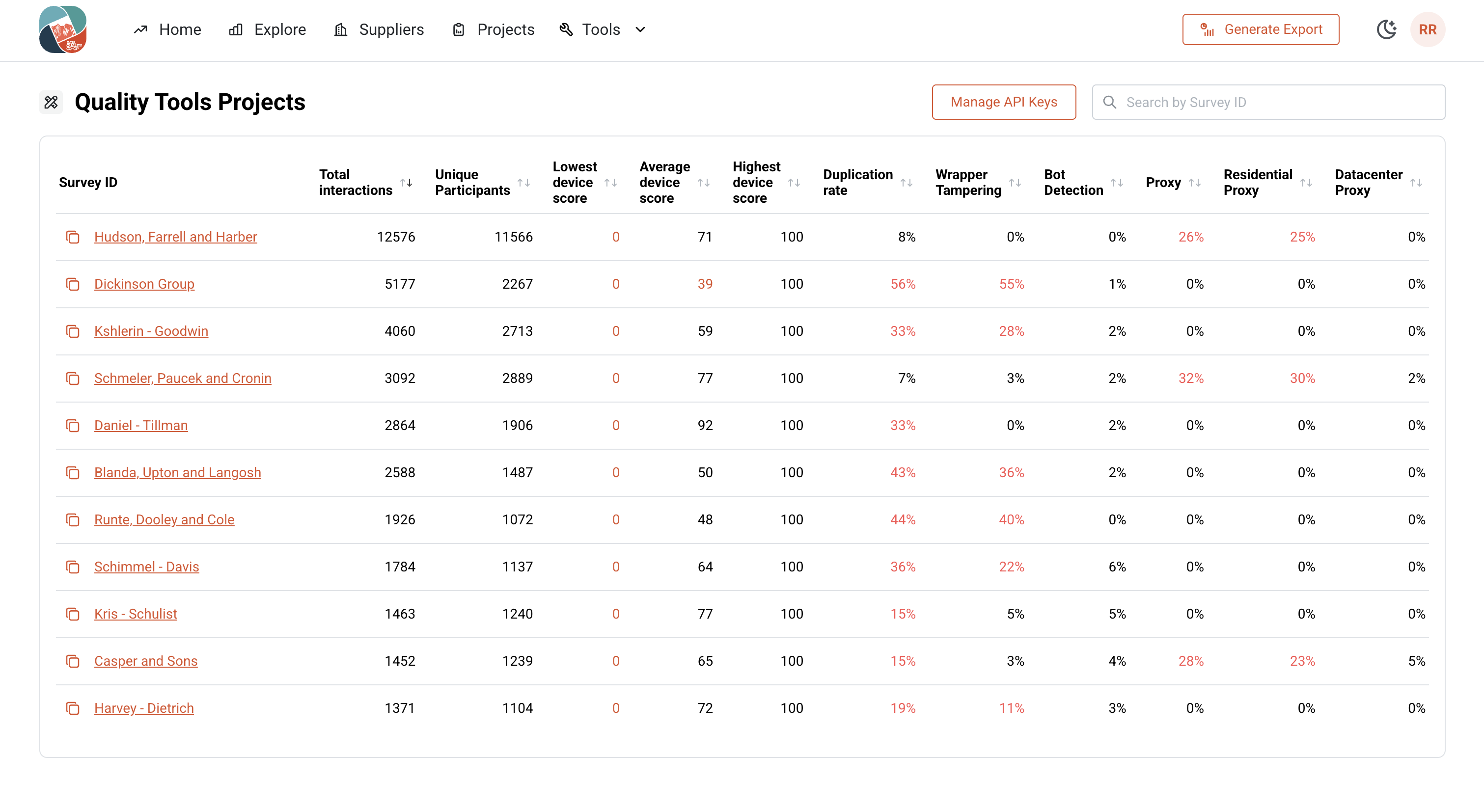
Figure: Quality Tools — Survey ID view in the DQCO-OP dashboard.
Step 2.2.2: Decipher UUID (optional)
The surveyId and uuid parameters can be used independently or together. Both are optional.
Decipher provides a custom UUID to enable session-based duplicate detection. This allows participants to resume surveys while maintaining their original isDuplicate status across different browser sessions.
How it works:
- When a participant is not flagged as a duplicate (
isDuplicate=false), their UUID is stored in the system. - On subsequent requests with the same UUID, the system recognizes them as returning to their original session and maintains
isDuplicate=false. - If a different UUID is provided, the participant is treated as a new session and may be flagged as a duplicate based on standard duplicate detection logic.
This is particularly useful for scenarios where participants need to resume a survey while preserving their original duplicate status.
Usage:
await DQCToolBox.getIdentity({
  surveyId: 'Your_Custom_Survey_Id', // Use your custom survey ID here
  uuid: `${uuid}` // Don't modify this line -  this is how decipher provides the UUID
});
Or with only a UUID:
await DQCToolBox.getIdentity({
  uuid: `${uuid}` // Don't modify this line -  this is how decipher provides the UUID
});
The uuid parameter (optionally together with surveyId) should be added inside the <style name="global.page.head" wrap="ready"> section of your XML, specifically by replacing the DQCToolBox.getIdentity() call in the JavaScript code with your updated version that includes the uuid parameter.
For most Decipher/Forsta users, setting a custom UUID is not required—the default behavior is suitable for typical use cases. Only configure the UUID if you have a specific need for session-based duplicate detection. Incorrect use of this option may result in inaccurate duplicate detection. Please contact DQC support if you have questions about this feature.
Full XML Survey Example
Here is a complete example of the final XML, following all the steps above.
Note: the DQC_API_KEY shown is not valid—you will need to generate your own.
View Complete XML Example
<?xml version="1.0" encoding="UTF-8"?>
<survey
  alt="Quality Tools Integration - Testing"
  autosave="0"
  builder:wizardCompleted="1"
  builderCompatible="1"
  compat="155"
  delphi="1"
  extraVariables="source,record,decLang,list,userAgent"
  fir="on"
  html:showNumber="0"
  mobile="compat"
  mobileDevices="smartphone,tablet,desktop"
  name="Survey"
  secure="1"
  setup="term,decLang,quota,time"
  ss:disableBackButton="1"
  ss:enableNavigation="1"
  ss:hideProgressBar="0"
  state="testing">

<samplesources default="0">
  <samplesource list="0">
    <title>Data Quality Co-op</title>
    <invalid>You are missing information in the URL. Please verify the URL with the original invite.</invalid>
    <completed>It seems you have already completed this survey.</completed>
    <exit cond="terminated">Thank you for taking our survey.</exit>
    <exit cond="qualified">Thank you for taking our survey. Your efforts are greatly appreciated!</exit>
    <exit cond="overquota">Thank you for taking our survey.</exit>
  </samplesource>
</samplesources>

<style name="respview.client.meta"><![CDATA[
  <link rel="preconnect" href="https://api.dqco-op.com" crossorigin="anonymous">
  <link rel="preconnect" href="https://fpmetrics.dqco-op.com" crossorigin="anonymous">
]]></style>

<style name="global.page.head" wrap="ready"><![CDATA[
(async () => {
  try {
    const { DQCToolBox } = await import('https://api.dqco-op.com/tools/toolbox/DQC_API_KEY');
    await DQCToolBox.getIdentity();
  } catch (error) {
    console.error('Error in client code:', error);
  }
})();
]]></style>
<suspend/>

<exec when="init">
# ===========================================================================
# DQC INTERNALS - GENERAL FUNCTIONS
# ===========================================================================
defaultAnswer = 'Submission too quick, data not processed'
def save_dqc_data():
    defaultDeviceFailuresAnswer = 'None' if getattr(p, 'client_dqc_participant_id', '') else defaultAnswer
    dqc_data.rid.val = getattr(p, 'client_dqc_request_id', '') or defaultAnswer
    dqc_data.pid.val = getattr(p, 'client_dqc_participant_id', '') or defaultAnswer
    dqc_data.per.val = getattr(p, 'client_dqc_persona', '') or 'NONE'
    dqc_data.dts.val = getattr(p, 'client_dqc_data_trust_score', '') or '0'
    dqc_data.dcs.val = getattr(p, 'client_dqc_device_score', '') or '0'
    dqc_data.cty.val = getattr(p, 'client_dqc_country_code', '') or defaultAnswer
    dqc_data.sub.val = getattr(p, 'client_dqc_subdivision_name', '') or defaultAnswer
    dqc_data.dup.val = getattr(p, 'client_dqc_is_duplicate', False)
    dqc_data.sid.val = getattr(p, 'client_dqc_survey_id', '') or defaultAnswer
    dqc_data.dfc.val = getattr(p, 'client_dqc_device_failures', '') or defaultDeviceFailuresAnswer
</exec>

<exec when="submit">
  save_dqc_data()
</exec>

<text
  cond="0"
  label="dqc_data"
  optional="0"
  size="10"
  translateable="0"
  where="execute,survey,report">
  <title>DQC Data Holder</title>
  <row label="rid">dqc-request-id</row>
  <row label="pid">dqc-participant-id</row>
  <row label="dts">dqc-data-trust-score</row>
  <row label="per">dqc-persona</row>
  <row label="dcs">dqc-device-score</row>
  <row label="dup">dqc-is-duplicate</row>
  <row label="cty">dqc-country</row>
  <row label="sub">dqc-subdivision</row>
  <row label="sid">dqc-survey-id</row>
  <row label="dfc">dqc-device-failures</row>
</text>

<suspend/>

<radio
  label="Q1">
  <title>Q1: Are you human?</title>
  <comment>Select one</comment>
  <row label="r1">Yes</row>
  <row label="r2">No</row>
</radio>

<suspend/>

<radio
  label="Q2">
  <title>Q2: Are you a duplicate?</title>
  <comment>Select one</comment>
  <row label="r1">Yes</row>
  <row label="r2">No</row>
</radio>

<suspend/>

<radio
  label="Q3">
  <title>Q3: You made it to the end of the example survey</title>
  <comment>Select one</comment>
  <row label="r1">Yay</row>
  <row label="r2">Bummer</row>
</radio>

<suspend/>


</survey>
Viewing Quality Tools Data in Your Survey Responses
On your survey, go to the navigation bar and click:
- RESPONSES → VIEW/EDIT RESPONSES
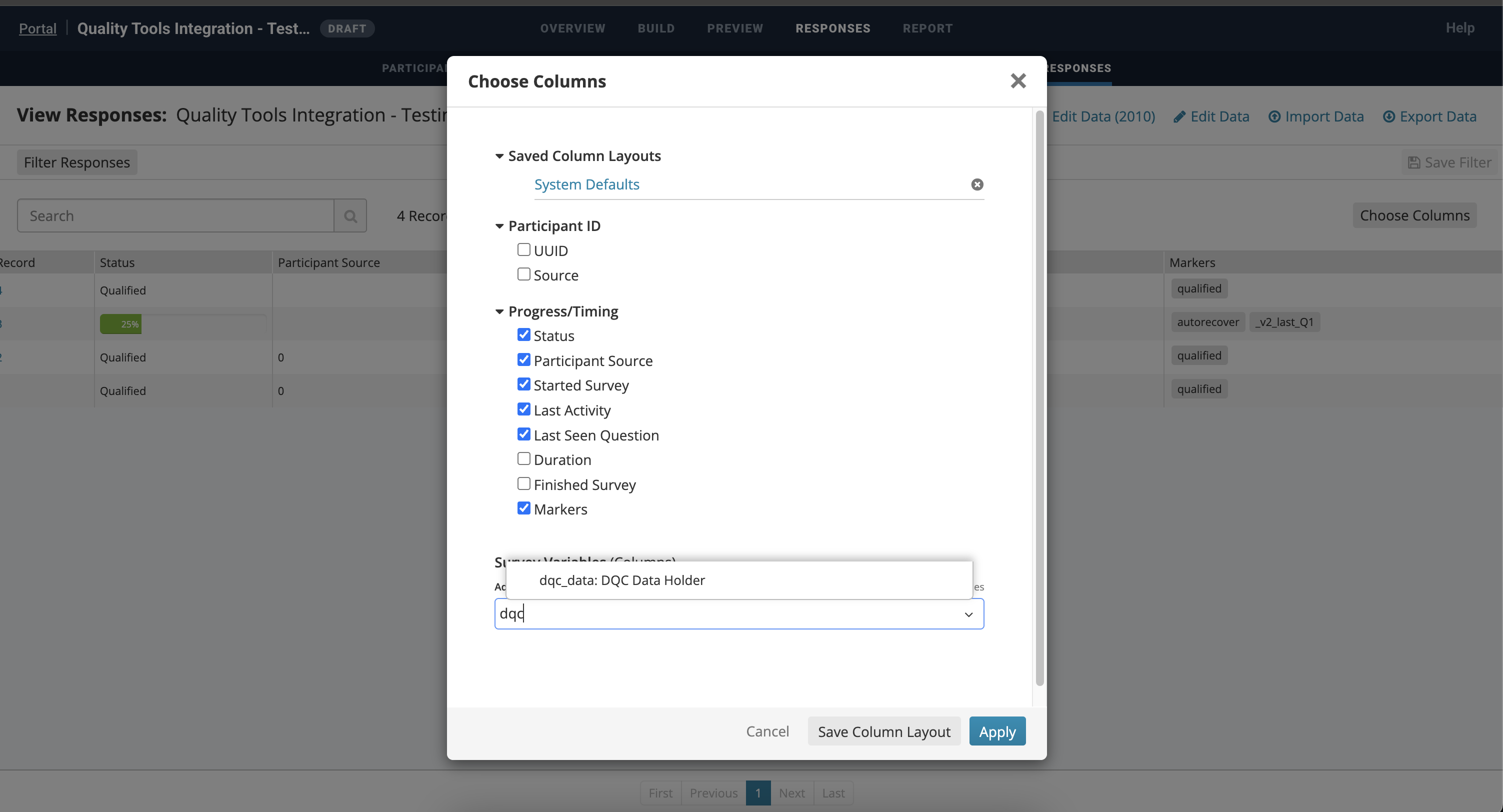
The data collected by the DQCToolBox will be stored in the dqc_data columns.
You can access this data in your survey responses by clicking on the Choose Columns and add the dqc_data Survey Variable (columns) to view your responses.
✅ Summary
- Include the initial DQC script after the
<survey>tag. - Change the
DQC_API_KEYin the script to your own. - Confirm success by checking that the data is stored in the
dqc_datacolumns.
Next Steps
If something is not working, Troubleshooting lists the common failure modes as symptom → cause → fix.
Once the Quality Tool is collecting data, send each participant's transaction record to DQC at the survey lifecycle hooks (completion, termination, over‑quota). See Sending Transaction Data.